Qt Bluetooth Widget
Qt Bluetooth Widget C++ code
We developed a BluetoothWidget class that inherits from QWidget to manage Bluetooth interactions within the application. This widget includes a QPushButton for scanning and connecting to devices, along with a QListWidget to display a list of available devices.
To handle Bluetooth connections, we use a QProcess to interface with bluetoothctl, as the Qt Bluetooth API is not available in the version of Qt used for this project. This approach allows us to effectively manage Bluetooth connectivity despite the API limitation.
Below is the header file for the BluetoothWidget class (bluetoothwidget.h), including private slots and methods that facilitate the functionality of the widget. The complete implementation of this declaration can be found in the GitLab repository associated with this project (in /Ultra96v2-GUI/bluetoothwidget.cpp).
#ifndef BLUETOOTHWIDGET_H
#define BLUETOOTHWIDGET_H

#include <QWidget>
#include <QListWidget>
#include <QPushButton>
#include <QProcess>
#include <QVBoxLayout>
#include <QMessageBox>
#include <iostream>
#include <QRegularExpression>

class BluetoothWidget : public QWidget
{
    Q_OBJECT

public:
    explicit BluetoothWidget(QWidget *parent = nullptr);
    ~BluetoothWidget();

private slots:
    void startDiscovery();
    void connectToDevice();
    void onProcessFinished(int exitCode, QProcess::ExitStatus exitStatus);
    void onReadyReadStandardOutput();
    void onReadyReadStandardError();

private:
    void handleDeviceFound(const QString &output);
    void handleConnectionSuccess(const QString &output);
    void handleErrorOutput(const QString &errorOutput);

    QListWidget *deviceListWidget;
    QPushButton *scanButton;
    QPushButton *connectButton;
    QProcess *bluetoothProcess;
    QString selectedDeviceAddress;
};

#endif // BLUETOOTHWIDGET_H
Qt Bluetooth Widget functionality
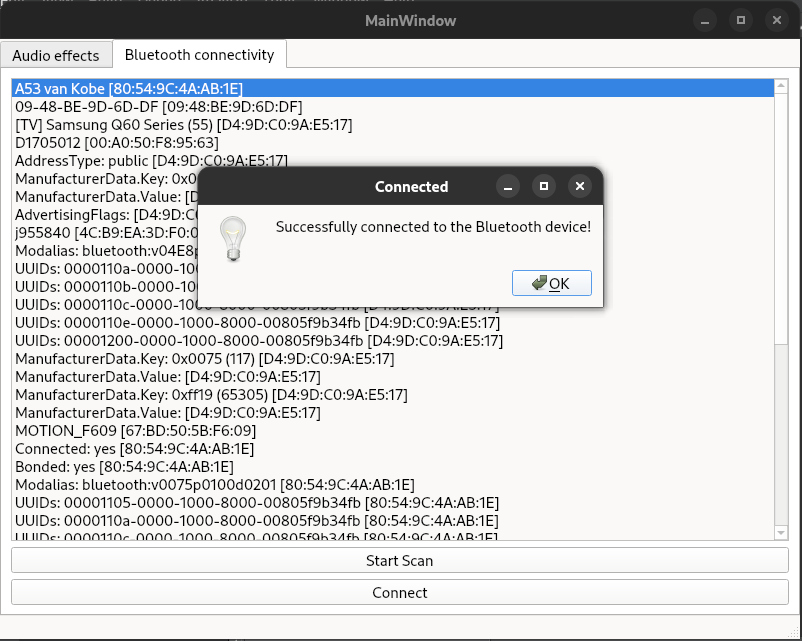
The image below illustrates our Qt Bluetooth Widget. When the Start Scan button is pressed, it triggers a bluetoothctl scan on process, initiating the scan and listing all available Bluetooth devices. Once a device is selected, the Connect button becomes active, allowing us to establish a connection.
The connection process involves sending a series of bluetoothctl commands:
bluetoothctl pairto pair with the selected device.bluetoothctl trustto trust the device.bluetoothctl connectto complete the connection, after the passkey is confirmed.
If the process is successful, a QMessageBox is displayed, informing the user that the connection to the selected Bluetooth device has been established successfully.